 ZxBudget
Guide
Reimbursements
Mark a purchase you expect someone to pay back. The category still records the spend.
1. Mark the purchase
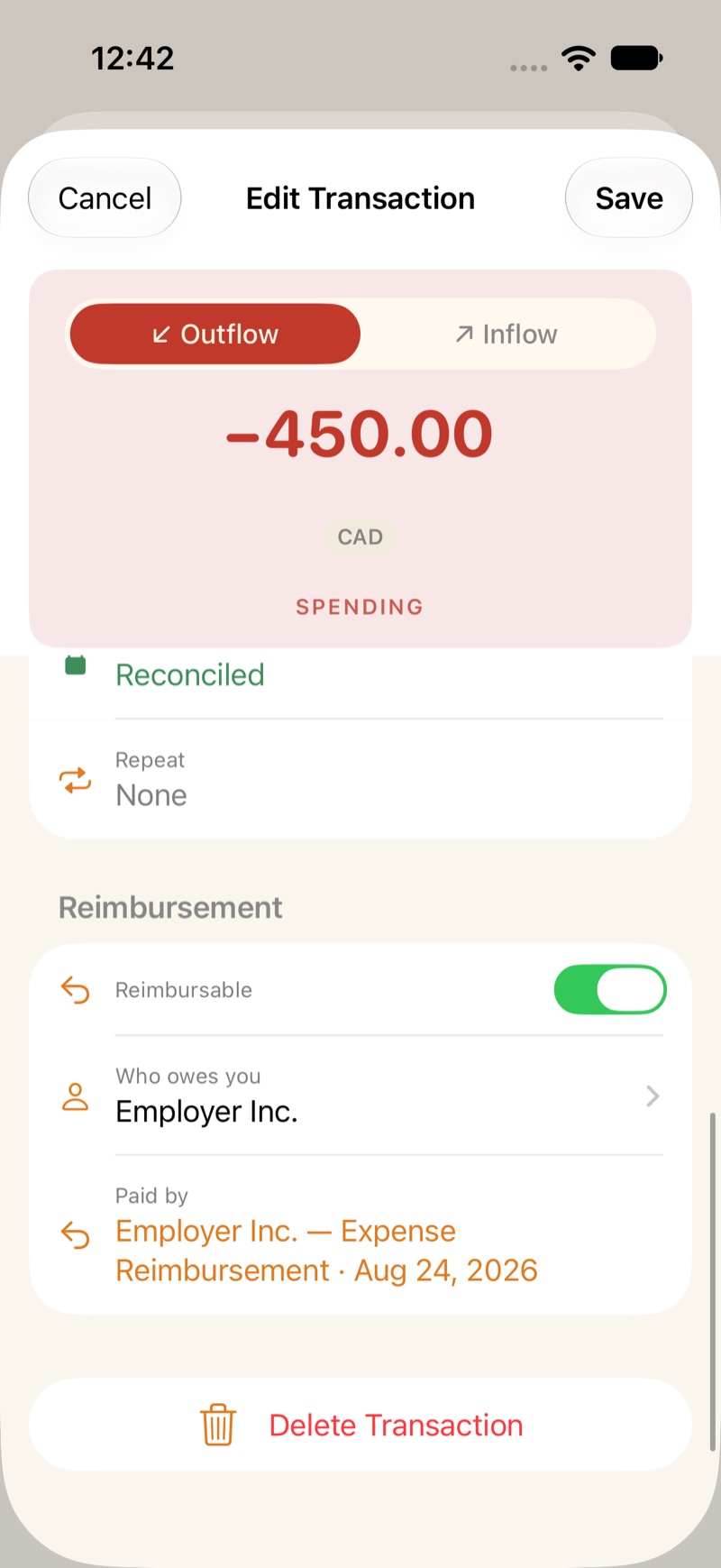
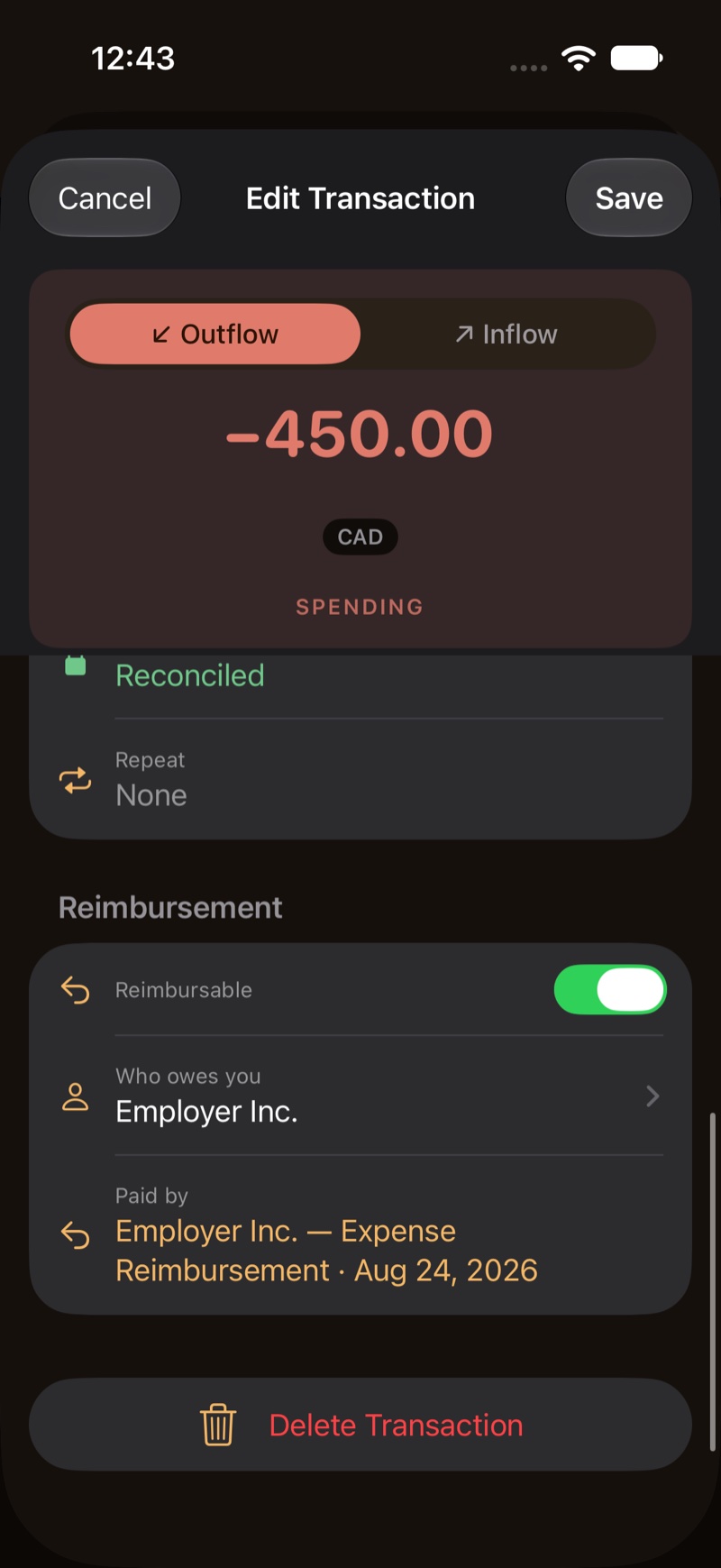
Open the purchase and open More Options. Under Reimbursement, turn on Reimbursable.
Who owes you is optional. Employers are listed first. ZxBudget does not fill this in for you.
You can also mark it from the register. Open the row menu and choose Reimbursable.
Marking it does not set money aside. Category available, overspending, and Ready to Assign stay on the normal rules. Cover the overspend the same way you cover any other purchase. When the repayment arrives, Apply puts that money back into the categories the purchase used. A card purchase still needs its payment category covered as usual.
2. See what is still owed
While something is open, Home shows Awaiting reimbursement. Open it for the list and the Still owed total. The row hides when nothing is owed.
The register can filter to Reimbursable. A row can show who owes you.
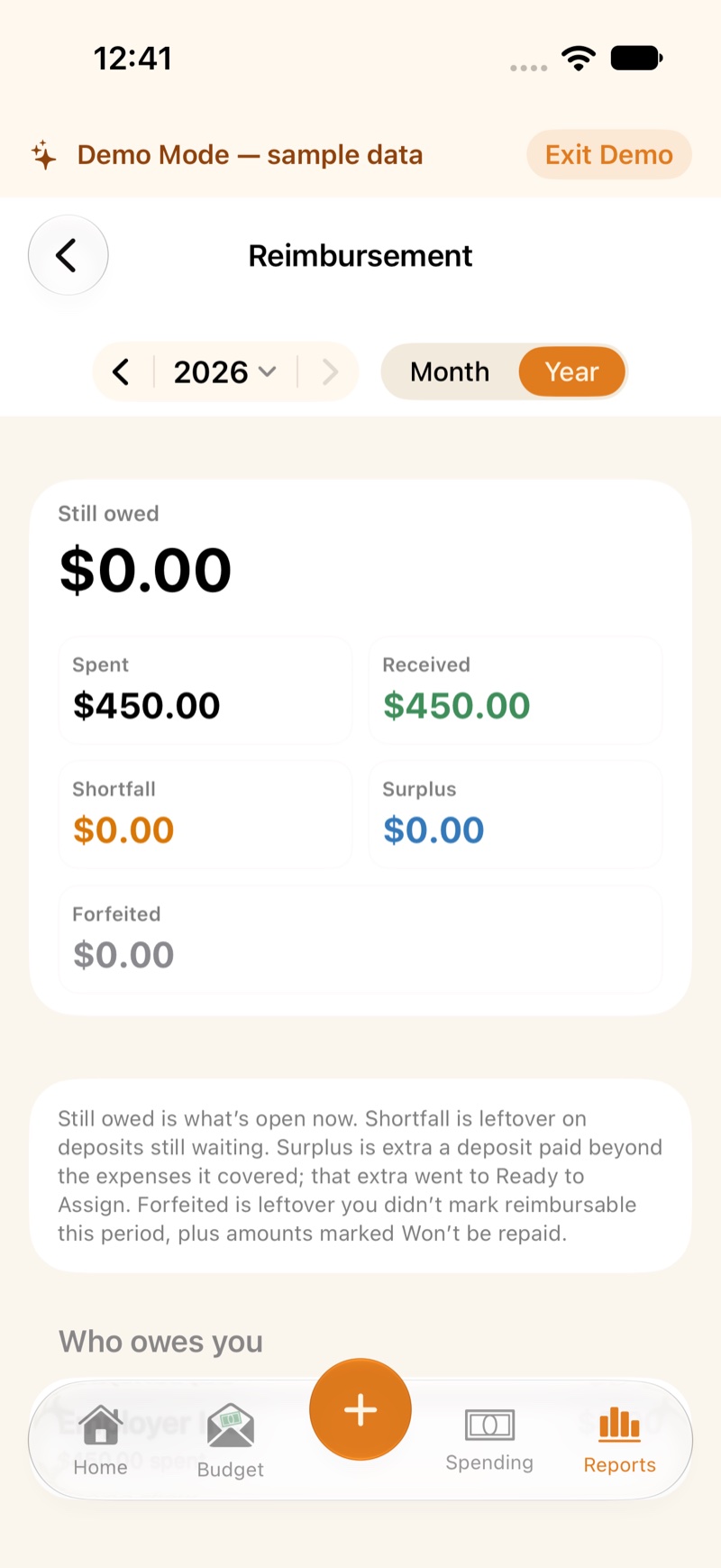
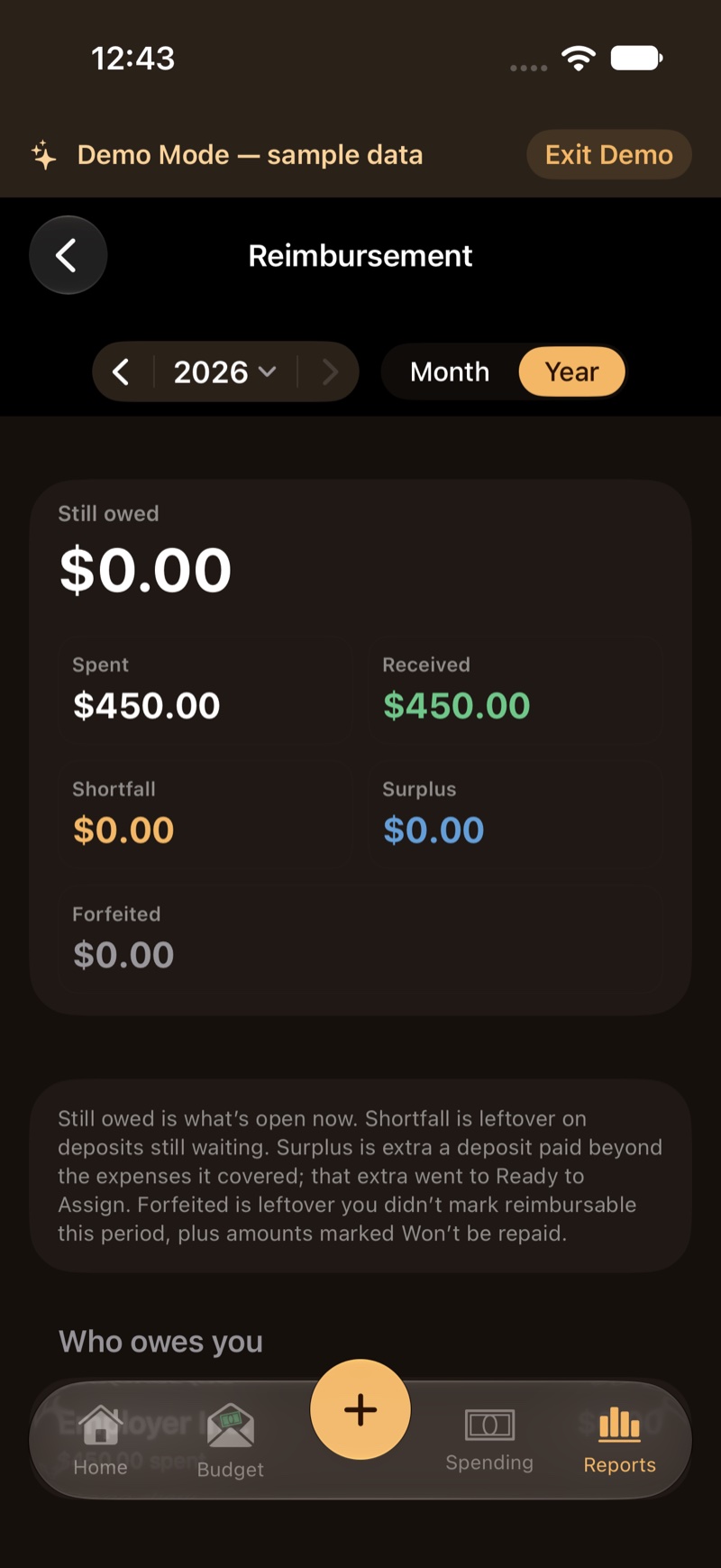
Reports has Reimbursements once the budget has any reimbursable purchase. Still owed is what is open now. Spent and Received are the month you are looking at. Shortfall is a deposit that did not cover everything and is still waiting. Surplus is extra that already went to Ready to Assign. Forfeited is what you do not expect back. Spending reports still count the purchase.
3. Apply the repayment
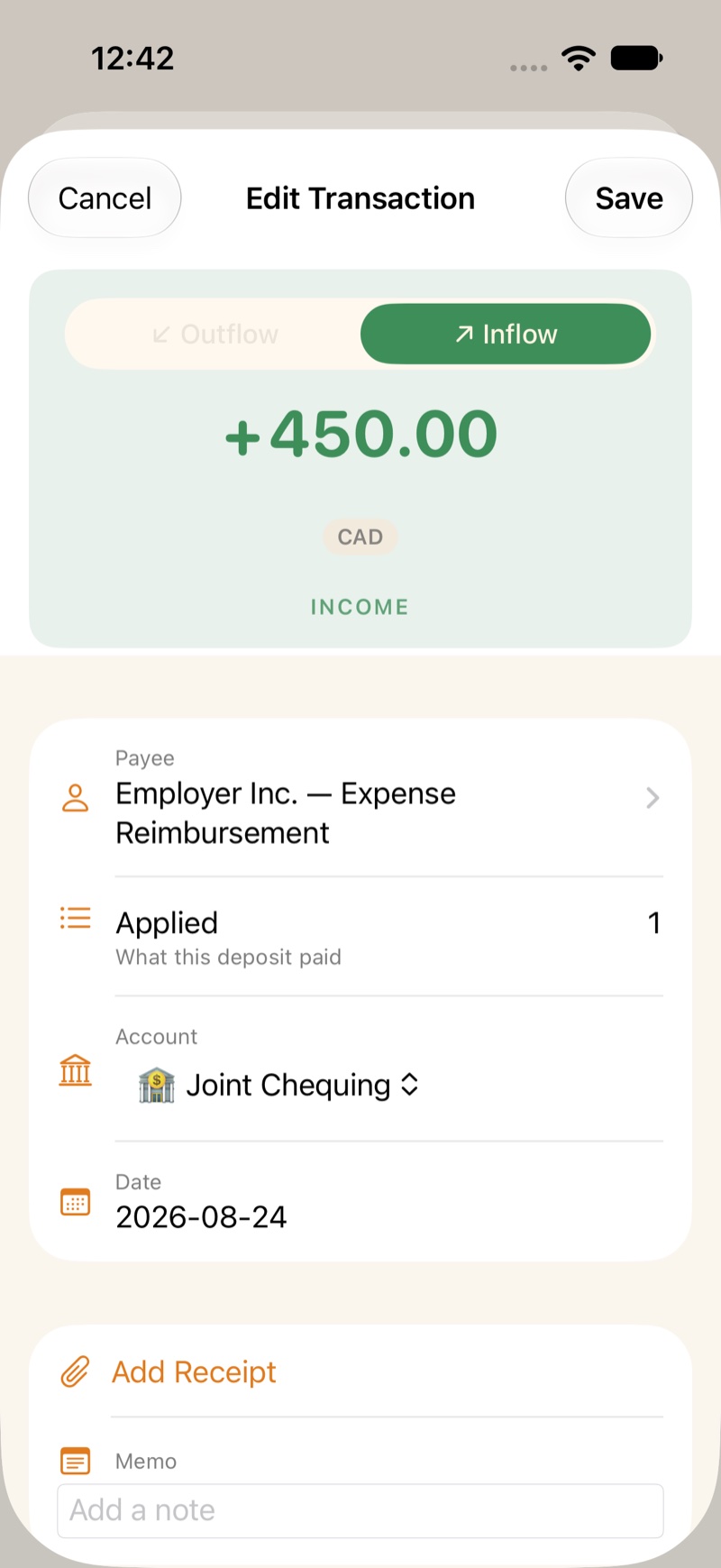
Record the deposit as an inflow. In More Options, under Reimbursement, choose Apply to reimbursements…
The sheet is Apply reimbursement. A Previous shortfall is paid first. Purchases whose Who owes you matches the deposit payee start selected. You choose the others.
Apply saves the deposit as what those purchases paid. What this deposit paid lists them. A paid purchase shows Paid by.
If the deposit is short, the rest is a Shortfall. Turn Reimbursable on if you still expect that remainder. Leave it off and the remainder is Forfeited. You can mark it later.
If the deposit is more than the purchases it covered, the extra goes to Ready to Assign. The report counts that extra as Surplus. Still owed does not change because of it.
4. Mark what will not be repaid
On an open amount, Won’t be repaid sets how much you are done waiting for. You can set None, All, or an amount in between. All closes it as Forfeited, not as paid. None puts the remainder back to still owed.
There is no second transaction. Use it from the purchase, from Awaiting reimbursement, or from the register Reimbursable menu.